
Luminar: Photo Editor&Enhancer
Skylum SoftwarePhotography
4.5322.00 Reviews
- Version
- 4.3.1
- Installs
- 1.00M
- Age Rating
- Everyone
Screenshots
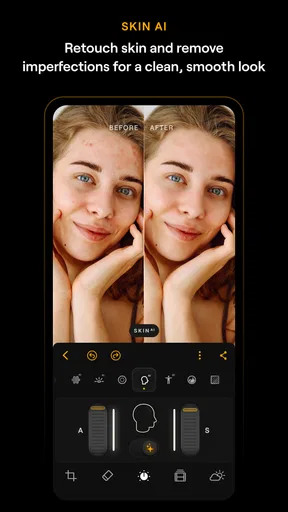
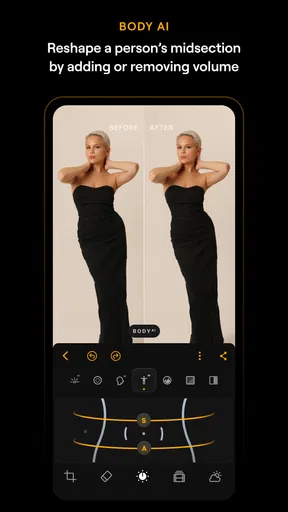
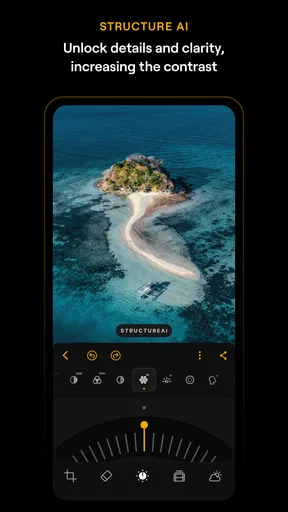
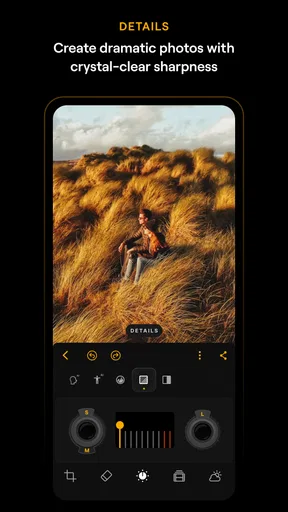
Our Review of Luminar: Photo Editor&Enhancer
 Analysis by Appyee
I reach for Luminar when a phone photo needs more than a quick crop but I don’t want to turn a small edit into a desktop project. The useful question is not whether an AI button can make an image more dramatic; it is whether I can guide the result, keep it believable, and finish the picture without losing sight of what I wanted to capture. That balance is where this photography app from Skylum Software makes the most sense.
A practical starting workflow
I’d begin with a photo that already has a clear subject and a problem I can name: a face lost in shade, a flat-looking landscape, or a crop that leaves too much empty space. Starting with one specific goal makes it easier to judge whether an adjustment helps. I would first straighten and crop, then work on the overall light and color, and only after that try a stronger AI treatment or filter. That order reduces the temptation to keep piling effects onto an image before its basic composition is settled.
For a casual portrait, for example, I’d make a restrained crop, lift the shadows if the face is too dark, and compare the original with the edited result before choosing a filter. For a travel photo, I’d check whether the sky or color treatment competes with the main subject. AI can be a fast starting point, but I still treat it as a suggestion: a vivid result is not automatically a more convincing one.
Small checks that keep edits under control
Before saving or sharing, I recommend looking at the image at both full-screen and thumbnail size. A dramatic color change may look exciting when enlarged but become muddy in a small social-media preview. I also check edges around the subject after an AI adjustment, especially where a person, roofline, or tree meets the sky. This is a useful habit with any automated edit: inspect the places where the subject and background meet rather than judging only the overall mood.
Filters are easier to use well when I think of them as a finishing touch instead of a repair tool. If a filter makes the image feel too strong, customizing it is more sensible than stacking another look on top. I’d keep a mental reference for the kind of contrast and color I like, then make similar choices from one photo to the next. That gives a set of travel or family pictures a more consistent feel without making every frame identical.
Where it fits among phone editors
Compared with a basic gallery editor, Luminar offers a more ambitious route for shaping a photo, especially when an AI enhancement or sky treatment is relevant. A simple built-in editor is often quicker for a one-second crop, a modest brightness fix, or an image I only need to send privately. I would not open a feature-rich editor just to rotate a receipt photo. The extra creative control is worthwhile when the picture matters enough to deserve a few considered adjustments.
It also suits a different mood from a manual-first editor. If I want to fine-tune every part of an image and keep the process deliberately technical, I may prefer a tool built around hands-on controls. Luminar’s appeal is that it makes more ambitious edits approachable, but that convenience does not remove the need for judgment. I still need to decide what should remain natural and when an effect has gone too far.
Who will get the most from it
I think it is a good fit for someone who takes plenty of phone photos, enjoys making them look more polished, and would rather experiment visually than learn a complicated editing workflow first. It can also suit a hobby photographer who wants quick creative options between more careful edits elsewhere. If you share portraits, outings, food, or landscapes, the mix of everyday adjustments and more expressive tools gives you room to handle different kinds of pictures.
It is less compelling if you rarely edit, dislike AI-led effects, or need a very quick tool for routine corrections. It may also frustrate anyone expecting every automatic result to match the scene perfectly without review. The best approach is to use an enhancement as a draft, compare it with the original, and dial back or skip it when the edit changes the character of the photo.
A realistic phone-photo session
Imagine coming home from a walk with a landscape that looked better in person than it does on your screen. I’d crop away distracting space, correct the overall brightness, and then test a sky treatment only if the sky is genuinely the weak point. Before keeping that change, I’d inspect the skyline and nearby branches for awkward edges. If the replacement draws attention away from the landscape, I’d undo it and rely on a gentler color adjustment instead.
That kind of decision is more useful than applying the strongest available look. It also helps me avoid editing a whole batch of pictures with one approach when their lighting differs. I would choose one representative photo first, settle on a restrained direction, and then use that as a visual reference for the rest. Even without assuming a special batch workflow, this habit makes a group of images feel related while leaving room to treat each frame on its own merits.
What to expect before committing
Luminar: Photo Editor is free to download, but it includes in-app purchases ranging from $0.99 to $179.99 per item. I would try the free experience first and decide whether the tools I actually use justify any purchase, rather than paying because a feature sounds impressive in theory. The app is rated for Everyone, has an average rating of 4.1 from around 7,600 ratings, and has been installed over a million times. Those figures offer context, but they cannot tell you whether its editing style will suit your own photos.
The app was released on April 30, 2025, and version 3.0.4 requires Android 11 or later. If you are choosing a new editor, checking that your phone meets that requirement is a straightforward first step. I would also try the same image in your usual editor and here: compare not just which version looks punchier, but which one preserves details and feels closer to the scene you remember.
First Impressions
When I first opened Luminar: Photo Editor, I was greeted with a sleek, user-friendly interface. Seriously, it’s like they knew I don’t have time to figure out complicated menus. Everything is laid out in a way that makes sense, and it didn’t take long before I was diving into the features.
Features That Shine
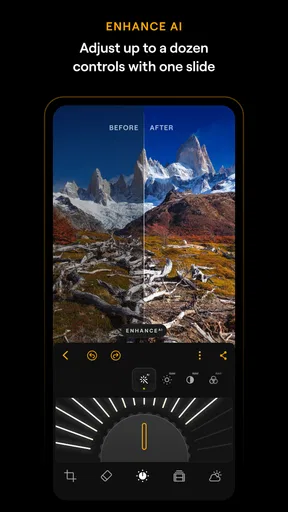
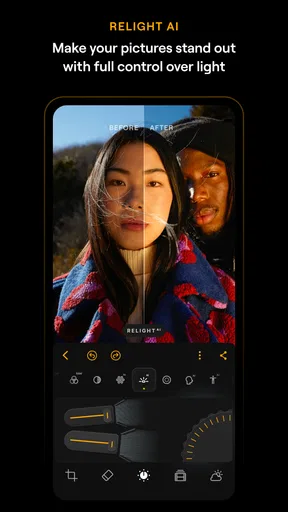
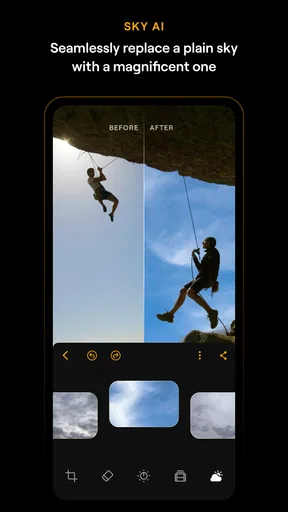
This app is packed with features, and I mean packed. You’ve got your standard editing tools like cropping, rotating, and adjusting exposure, but it’s the advanced tools that really caught my eye. The AI-powered enhancements are a lifesaver. With just a tap, you can transform a dull photo into something vibrant and eye-catching. The AI Sky Replacement is a personal favorite – it’s like magic how it swaps out boring skies with stunning sunsets or dramatic clouds.
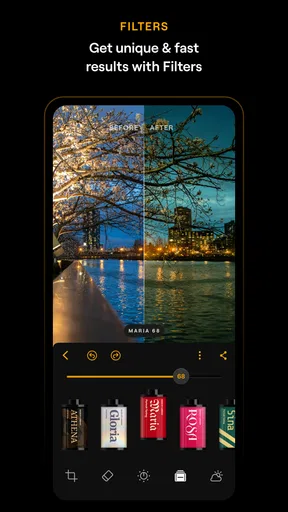
There’s also a ton of filters to play with. Whether you’re going for a vintage vibe or something more modern, you’ll find something that fits. And the best part? You can customize these filters to match your unique style.
Performance and Usability
Now, let’s talk about how it runs. I’ve been using it on my Android phone, and it’s smooth sailing. No lags, no crashes, just seamless editing. It doesn’t drain the battery as much as I expected either, which is a huge plus.
Navigating through the app is a breeze. Even though it’s loaded with features, I never felt overwhelmed. The learning curve is pretty gentle, which means you can start editing like a pro in no time. And if you ever get stuck, there’s a handy tutorial section that walks you through the basics.
Final Thoughts
In a world where everyone’s a photographer thanks to smartphones, Luminar: Photo Editor stands out by offering powerful tools that are easy to use. Whether you’re an amateur or a seasoned pro, this app has something for you. It’s like having a professional studio in your pocket, ready to make your photos pop.
If you’re looking to take your photo editing game to the next level, give Luminar a shot. Trust me, your Instagram feed will thank you.
Verdict
Strengths of Luminar: Photo Editor&Enhancer
- Intuitive interface for easy editing.
- Advanced AI tools enhance photo quality.
- Supports a wide range of file formats.
- Non-destructive editing preserves originals.
- Frequent updates with new features.
Limitations of Luminar: Photo Editor&Enhancer
- Requires a powerful device for optimal use.
- Limited free version features.
- In-app purchases can add up.
- Occasional slow performance on older devices.
- Some advanced tools have a learning curve.
Similar Picks in This Category
View All
Google Photos
Google LLC4.4

Gallery
Google LLC4.2

Picsart AI Photo Editor, Video
PicsArt, Inc.3.9

B612 AI Photo&Video Editor
SNOW Corporation4.1

BeautyPlus-Selfie Photo Editor
PIXOCIAL TECHNOLOGY (SINGAPORE) PTE. LTD.4.5

Remini - AI Photo Enhancer
Bending Spoons4.1
Frequently Asked Questions
What are the main features of Luminar: Photo Editor?
Luminar: Photo Editor offers a wide range of features including AI-powered enhancements, customizable filters, and a user-friendly interface. It supports RAW files and offers tools like layers, masks, and blending modes. The app also includes unique features such as AI Sky Replacement and AI Skin Enhancer, making it ideal for both beginners and advanced users.
Is Luminar: Photo Editor suitable for professional photographers?
Yes, Luminar: Photo Editor is suitable for professional photographers due to its comprehensive suite of editing tools and advanced AI capabilities. It allows for precise adjustments and creative enhancements. Professionals will appreciate its support for RAW files and non-destructive editing, giving them full control over their projects.
How does Luminar's AI technology enhance photo editing?
Luminar's AI technology simplifies complex photo editing tasks. Features like AI Sky Replacement and AI Augmented Reality automatically detect and enhance specific elements in photos. This technology saves time by streamlining processes such as lighting adjustments and object removal, allowing users to achieve professional-quality results with minimal effort.
What are the system requirements for Luminar: Photo Editor?
Luminar: Photo Editor requires iOS 13.0 or later for iPhone and iPad, and Android 7.0 or later for Android devices. It’s recommended to have a device with at least 4GB of RAM and a multi-core processor to ensure smooth operation, especially when working with high-resolution images or using advanced features.
Is there a subscription fee or one-time purchase for Luminar: Photo Editor?
Luminar: Photo Editor typically offers both subscription and one-time purchase options. The subscription model provides access to updates and new features as they are released, while the one-time purchase grants lifetime access to the current version. Pricing may vary, so it's best to check the official website or app store for the latest information.
